Creator Setup Guide
Get your Mealsio page up and running in under 10 minutes.
Sign Up
Create your free account at mealsio.com. You can sign up with Google or email. No credit card required.
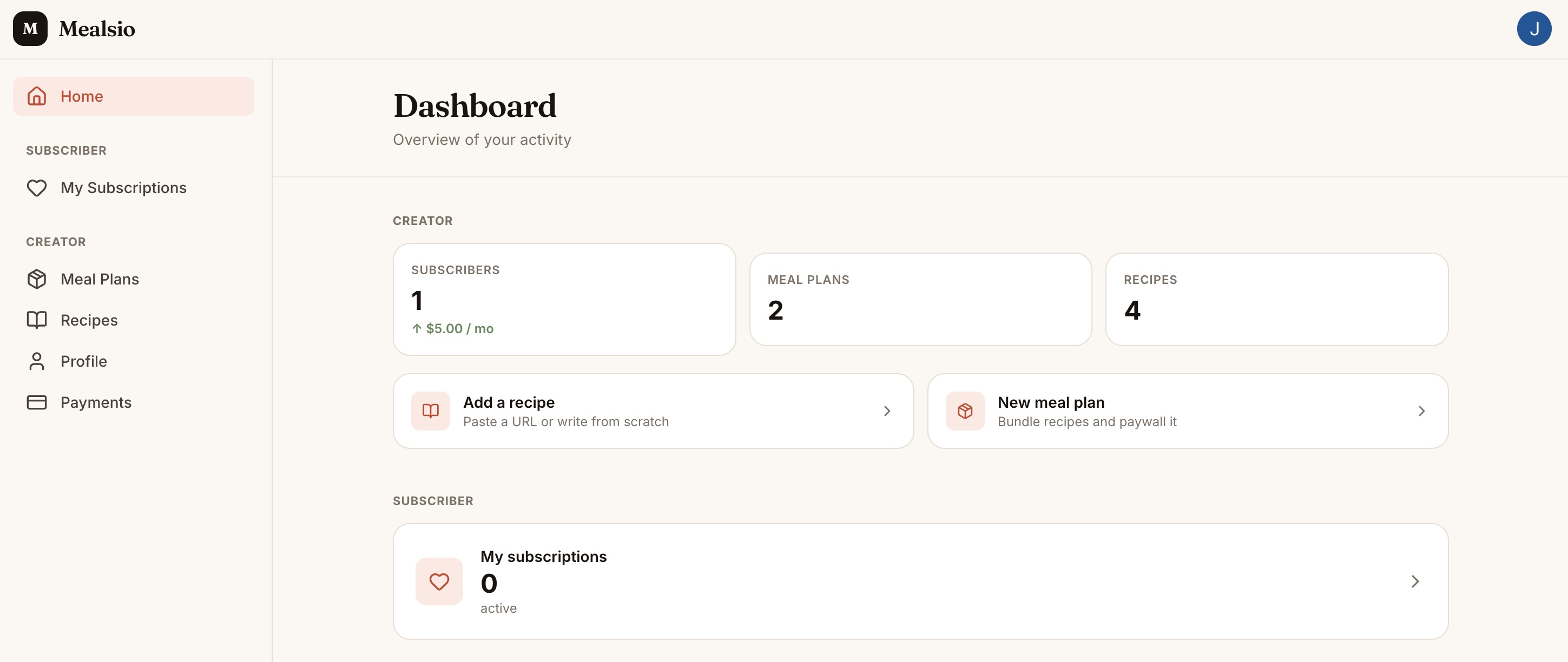
Once you sign in, you'll land on your Dashboard. This is your home base where you can see your meal plans, recipes, and subscriber count at a glance.
Set Up Your Profile
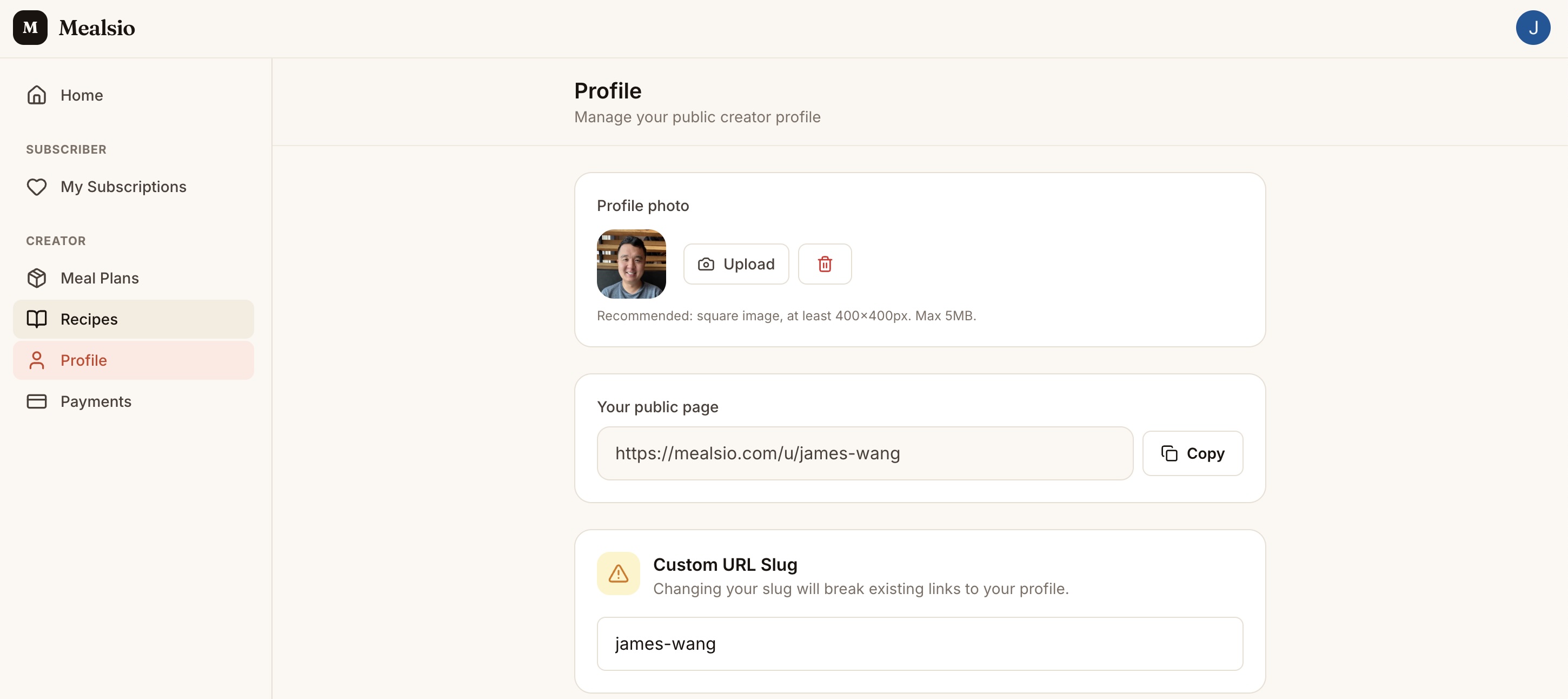
Click Profile in the sidebar. Here you can set your display name, bio, and profile photo. These show up on your public creator page.
Your slug is your unique URL. For example, if your slug is jane-cooks, your public page will be at mealsio.com/u/jane-cooks. Share this link with your audience.
Add Your First Recipe
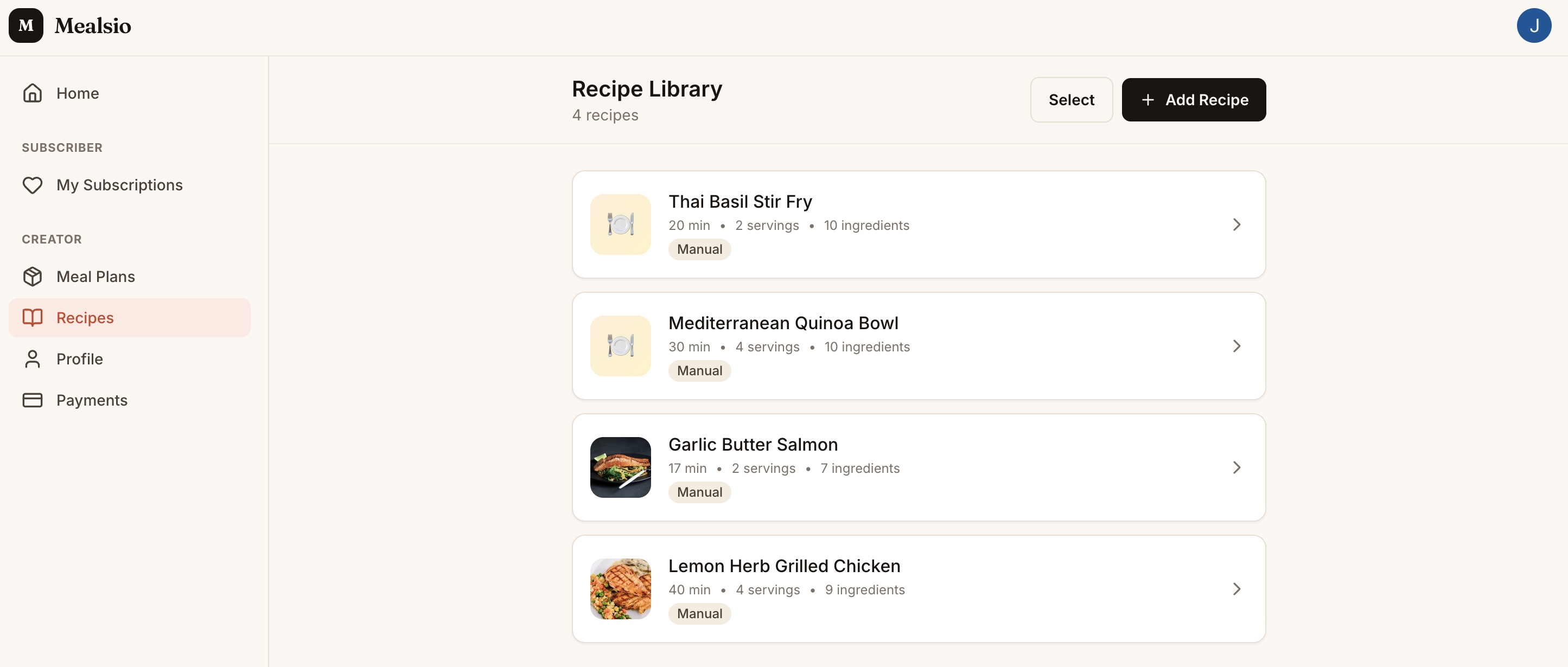
Click Recipes in the sidebar, then + Add Recipe.
You can add recipes two ways:
- Manual — Enter a title, ingredients, instructions, and photo
- Paste & Parse (AI) — Paste recipe text you created or have permission to use, and our AI turns it into an editable draft
Create a Meal Plan
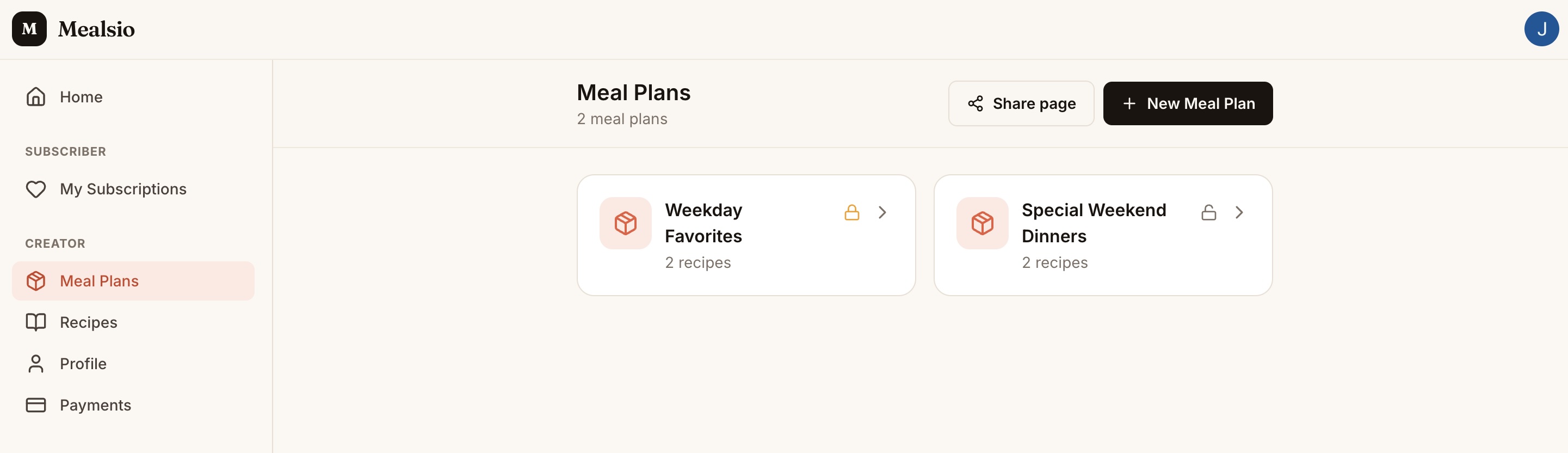
Click Meal Plans in the sidebar, then + New Meal Plan. Give it a title and description, then add recipes from your library.
Meal plans are what your subscribers browse. Group recipes by theme — "Quick Weeknight Dinners," "Meal Prep Sundays," etc. Free Creator accounts include up to five meal plans; Mealsio Pro unlocks unlimited meal plans.
Preview and Share
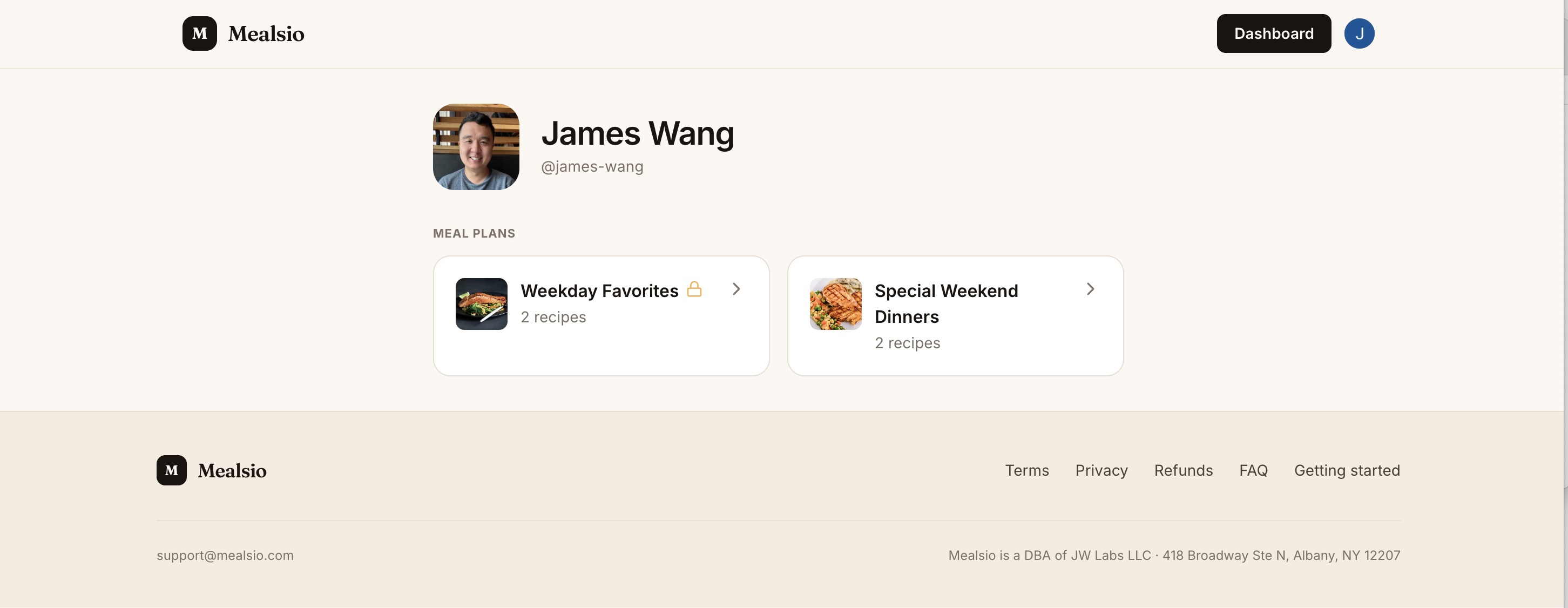
Click Share page on your Meal Plans page to get your public link. Visit it to see exactly what visitors see — your profile and your meal plans, ready to cook from.
Share the link on social media, in your newsletter, or in your bio. That's your page live. Want to charge for access? See the optional steps below.
OptionalCharge for your plans
Set up payments and paywall any plan — only if you want to monetize.
Charge for your plans
Set up payments and paywall any plan — only if you want to monetize.
Set Up Payments
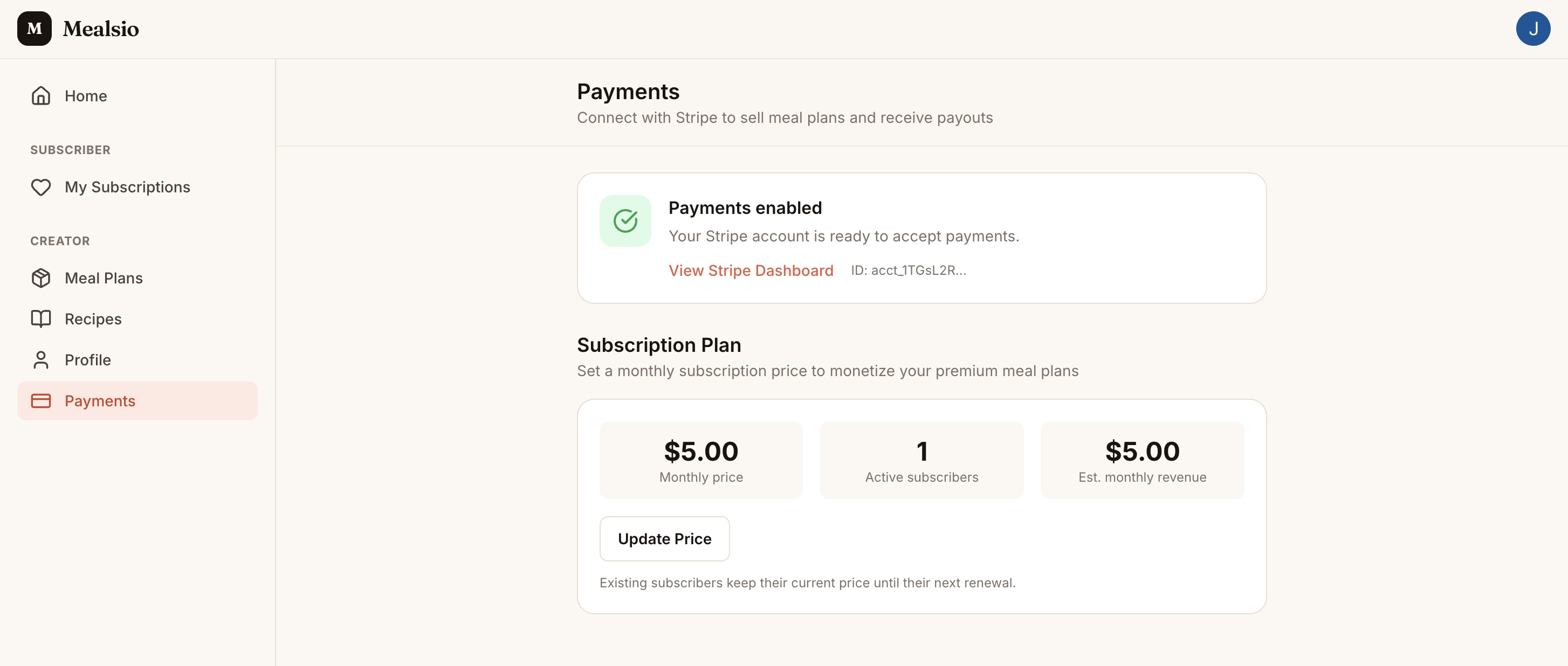
Click Payments in the sidebar, then Set up payments. You'll be redirected to Stripe to enter your bank account details and verify your identity.
Once complete, you'll see a green Payments enabled badge. Identity verification may take some time depending on Stripe.
Set Your Subscription Price
Still on the Payments page, set your monthly subscription price under Subscription Plan. This is the single price subscribers pay to access all of your premium content.
You can update your price anytime. The new price applies to new subscribers. Existing subscribers keep the price they originally accepted unless their subscription ends and they subscribe again.
Paywall Your Meal Plans
Go back to Meal Plans. Each meal plan has a lock icon — click it to toggle the paywall on or off.
Tip: Leave at least one meal plan free as a preview of your content. This lets visitors see what they'll get before subscribing.
Questions about paywalling, pricing, or payouts? Read the subscriptions FAQ.